Mirror Link App for Car
Smart Photo LabLibraries & Demo
3.92.00 Reviews
- Version
- 1.0.6
- Installs
- 10.00K
- Age Rating
- Everyone
Screenshots
Our Review of Mirror Link App for Car
 Analysis by Appyee
I judge a phone-to-car app less by the promise of a bigger screen than by what happens during an ordinary drive: can I get connected without turning the driveway into a troubleshooting session, and can I leave the controls alone once the car is moving? Mirror Link is aimed at that simple goal, but its usefulness depends on the phone and dashboard working together. I’d treat it as a possible bridge between the two, not as a guarantee that every car can mirror every app.
Who may find it useful
This is most appealing if your car has a dashboard display but your preferred phone content is awkward to reach there. A driver who mainly wants a familiar way to bring up navigation, music, or other phone content may see the appeal. It may also suit someone who is curious about screen mirroring and wants to explore it without paying an upfront app price.
I would be more cautious if you already rely on a polished built-in system and it reliably handles your everyday needs. A second layer of mirroring can add steps rather than remove them. It is also a poor fit for anyone expecting an app alone to make an incompatible car accept a phone display: the vehicle’s own hardware and supported connection methods still matter.
Before the first drive
My practical advice is to check the car’s manual or dashboard settings before installing anything, then compare what the vehicle supports with the connection options available on your phone. The name “Mirror Link” can sound like a universal standard, but similar names are used for different approaches to connecting screens. Confirming the exact method first can save a lot of guesswork.
Do the initial test while parked. Try the cable or wireless route your car supports, watch for an on-screen prompt, and make sure the phone is actually being shown on the dashboard rather than merely charging or playing audio. If it does not appear, change one thing at a time—connection method, dashboard input, or phone setting—so you can tell what helped instead of repeating the whole setup blindly.
That small routine is more useful than assuming a failed first attempt means the app is broken. A phone can connect to a car for calls or sound without supporting screen display, and a dashboard can have its own source-selection step. Treating those as separate checks makes troubleshooting clearer and avoids fiddling while driving.
Wireless convenience and the real trade-off
Wireless display sounds ideal because it avoids handling a cable every time you enter the car. In practice, I’d choose convenience only after confirming that the phone and dashboard can maintain the connection. A cable can be less elegant but easier to diagnose: if the display drops, there are fewer connection stages to consider. For a short local trip, either option may be fine; for a route where navigation matters, I’d use whichever one has proved steadier in that specific car.
There is another everyday trade-off: mirroring can put more of the phone’s interface in view, but that does not automatically make every screen safe or convenient to use behind the wheel. I’d set a destination, choose audio, and arrange anything else I need before pulling away. If a screen demands touch input during the trip, the better choice is to stop safely or use the car’s voice controls where available, rather than treating a larger display as permission to interact more.
A repeatable routine beats improvising
For regular use, I would make the connection part of a short parking routine: start the car, select the correct dashboard source, connect the phone, and confirm the content I need before moving. Keeping that order consistent helps reveal where a problem occurs. If the phone connects but the car shows the wrong source, the issue is different from a phone that never establishes a display connection.
A useful tip is to test the exact apps and screens you plan to use, not just the home screen. A map may behave differently from a video or messaging app, and a successful mirror does not mean every app is appropriate to display while driving. I would also keep a simple fallback ready—such as navigation on the phone mounted safely or audio instructions—so one connection problem does not leave me searching through menus at the curb.
How it compares with familiar options
Compared with a car’s built-in phone integration, mirroring can feel more familiar because the phone remains the source of the interface. The downside is that a full phone display may be less tailored to driving than a vehicle-supported interface. Built-in systems often keep the most relevant controls prominent; mirroring can expose more choices than I want while moving. If your car already supports a dependable native option, I’d use that for routine trips and consider mirroring only for a specific need it does not cover.
Compared with a phone mount, a dashboard display may be easier to glance at if the connection works and the screen sits naturally in the cabin. A mount, however, avoids compatibility questions between a mirroring app and a vehicle. If your main goal is simply turn-by-turn directions, a secure mount and the phone’s own navigation may be the more predictable answer. The right choice depends less on which sounds newer and more on which setup you can prepare before driving and trust without repeated adjustment.
For music, Bluetooth audio may be enough if you only need sound and basic playback controls. Screen mirroring becomes more relevant when seeing the phone’s interface is part of the point. I would not add display mirroring just to solve an audio problem that the car already handles easily.
Setting Up and First Impressions
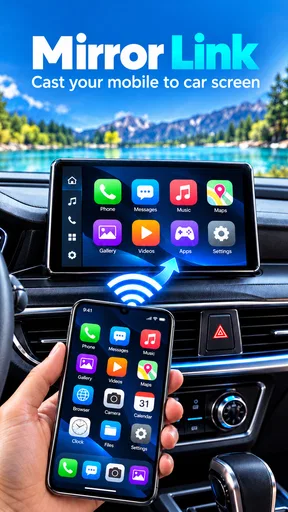
First things first, getting the Mirror Link app up and running was a breeze. You know how some apps make you jump through a million hoops just to get started? Not this one. After downloading it, I connected my phone to my car via USB, and voila! My phone's interface magically appeared on the dashboard screen.
One thing I immediately noticed was the clean and intuitive layout. The app mirrors your phone's display, so navigating through it felt as familiar as using my phone. Whether you're an Android or iOS user, the interface is surprisingly user-friendly, which is a real win in my book.
Features That Stand Out
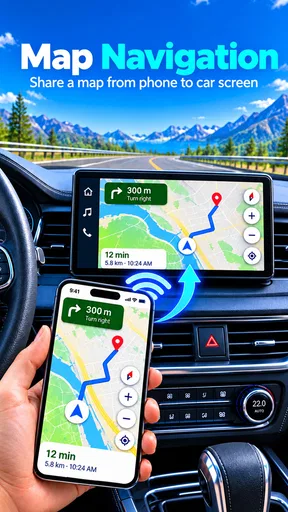
Now, let's dive into the features. The app supports a range of functions like calling, messaging, navigation, and music streaming. I was particularly impressed with how smoothly it handled Google Maps. The real-time updates and voice navigation were crisp and clear, making my drive much more manageable.
Music lovers, rejoice! The app connects seamlessly with Spotify and Apple Music. I could easily switch between playlists and skip tracks without a hitch. The audio quality was top-notch, and there were no noticeable lags or glitches.
What I Loved About the App
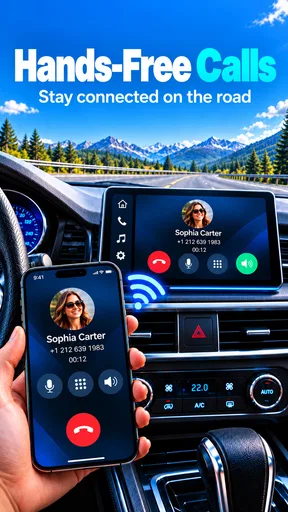
One of the standout features for me was the hands-free calling and messaging. It's not just about safety on the road; it's also super convenient. The voice command feature worked like a charm, allowing me to make calls and send messages without taking my eyes off the road.
Another aspect I appreciated was the app's ability to integrate other third-party apps. Whether it's WhatsApp for messaging or Waze for navigation, the app supports them, making it incredibly versatile.
A Few Hiccups Along the Way
No app is perfect, and Mirror Link is no exception. I did experience a minor hiccup with connectivity at one point. The app disconnected when I drove through an area with poor reception. It was a bit frustrating, but reconnecting was straightforward once I was back in a better signal area.
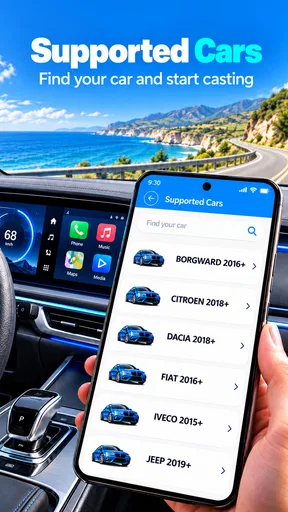
Also, while the app supports a wide range of vehicles, it's worth noting that older models may not be compatible. It's always a good idea to check your car's compatibility before diving in.
What to expect from the app itself
As an app in the libraries and demo space, this is best approached as a tool to try a particular kind of phone-to-dashboard connection, not as a replacement for the car’s own operating system. Smart Photo Lab develops it, and its simple purpose is easy to understand: it is intended to help display phone content in a car. The practical experience still depends on whether the phone, app, connection, and vehicle cooperate.
The app is free to install, while in-app purchases are listed at $1.99 per item. I’d begin with the basic experience and decide whether it fits my setup before considering any purchase. It is rated for Everyone, has an average rating of 3.8 from around 422 ratings, and has passed 10K+ installs. Those figures suggest some real interest, but they are not a substitute for checking compatibility in your own car.
The release date is February 3, 2025, and the current version is 1.0.4, with Android 9 as the minimum operating system. If your phone is older, that minimum is a useful first check; if your car is older, the dashboard’s supported connection method is a separate question. I would not assume that meeting the phone requirement settles the vehicle side.
A normal trip is the best test
Imagine leaving for an unfamiliar appointment on a weekday morning. Before setting off, I’d connect the phone while parked, choose the route, and start the navigation audio. Then I’d leave the display alone and follow the spoken directions. If the route changes or the connection drops, I’d pull over before trying to fix it. That is a more realistic test than opening several apps in the driveway and assuming the arrangement will remain effortless on every journey.
For a commute, a repeatable start-up sequence matters more than having every phone app available. I’d favor a stable map and one audio choice over browsing through a broad mirrored screen. For a passenger, on the other hand, the ability to use the phone’s display may be more useful, since they can handle route changes or music selection without distracting the driver. The same feature can therefore be convenient in one seating arrangement and a poor choice in another.
Where I would draw the line
Connectivity is the main practical weak point to keep in mind. If your route passes through areas with unreliable reception, do not assume a live connection will stay uninterrupted; plan a fallback and avoid relying on a display you have not tested. A display interruption may not end the trip, but trying to restore it while moving is the wrong trade-off. The app is most sensible when setup can happen before the car is underway and the driver can leave the phone alone afterward.
I would also skip it if you want a completely hands-off upgrade that works the same way in every vehicle. A car’s age and compatibility can matter, and an app cannot erase limitations in the dashboard hardware. If you are shopping for a dependable in-car interface, a factory-supported system or a dedicated navigation option may be a better fit than experimenting with mirroring.
Wrapping Up the Experience
So, would I recommend the Mirror Link app? Absolutely. It's an excellent tool for anyone looking to enhance their driving experience with a touch of modern tech. The ease of use, coupled with its robust feature set, makes it a fantastic choice for both tech enthusiasts and everyday drivers.
If you're looking to simplify and modernize your driving experience, give Mirror Link a shot. It's like having your smartphone and car become best friends, and who wouldn't want that?
My recommendation comes with one condition: check the connection in your own parked car before making it part of your routine. If it works reliably and you use it for a clear purpose, it can be a handy way to bring phone content to the dashboard. If it takes repeated fiddling, or your car already handles navigation and audio better, I’d stick with the simpler option. That practical test matters more than the promise of mirroring alone.
Verdict
Strengths of Mirror Link App for Car
- Seamless integration with car systems.
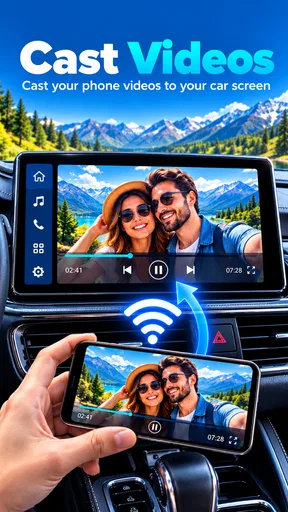
- Supports multiple audio and video formats.
- User-friendly interface for easy navigation.
- Real-time GPS and traffic updates.
- Compatible with both Android and iOS devices.
Limitations of Mirror Link App for Car
- May require high-speed internet connection.
- Limited compatibility with older car models.
- Some features require in-app purchases.
- Occasional connectivity issues reported.
- Interface may distract while driving.
Similar Picks in This Category
View All
PGT: GFX, Launcher & Optimizer
Trilokia Inc.4.5

AusweisApp Bund
Governikus Service GmbH3.7

Cardboard
Google LLC3.2

Gamers GLTool with Game Tuner
Trilokia Inc.4.5

Multi Web Chat - Read Secretly
World Scan & Cleaner3.8

App Cloner Premium & Add-ons
App Listo1.9
Frequently Asked Questions
What is the Mirror Link App for Car, and how does it work?
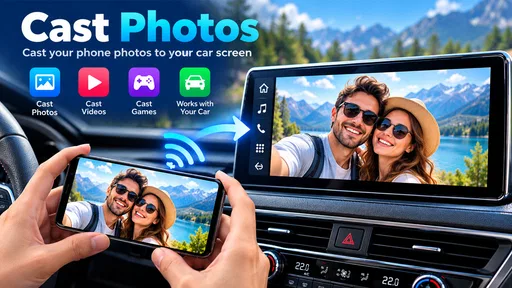
The Mirror Link App for Car is a connectivity solution that allows you to mirror your smartphone’s screen onto your car’s infotainment system. This enables you to access your phone’s apps, music, navigation, and more directly from your car’s display, providing a seamless and safer driving experience.
Is my smartphone compatible with the Mirror Link App for Car?
Compatibility depends on both your smartphone and your car’s infotainment system. Most Android phones support Mirror Link, but iOS devices typically require different solutions like Apple CarPlay. Check the app’s official website or your car manufacturer’s guidelines to ensure compatibility before downloading.
What are the main features of the Mirror Link App for Car?
The app offers features like hands-free calling, navigation, media playback, and app mirroring. It provides a user-friendly interface that integrates with your car’s controls, allowing you to manage these functions without having to handle your phone, enhancing safety and convenience on the road.
Does the Mirror Link App for Car affect my phone’s performance or battery life?
Using the Mirror Link App can impact your phone’s battery life as it requires continuous connectivity and screen mirroring. It’s advisable to keep your phone charged while using the app. Performance impact is minimal, but it’s always good to close unused apps to optimize functionality.
Is there any cost associated with using the Mirror Link App for Car?
The app itself is often free, but you might encounter in-app purchases or subscription fees for premium features. Additionally, using mobile data for streaming music or navigation can incur charges depending on your mobile plan. Check the app store listing for detailed pricing information.
